Open vCard files
Inspect .vcf contact files directly from your Mac without first importing them into Contacts.
Open vCard files and browse contacts stored in your Mac Contacts app from one clear workspace. Search, sort, organize and inspect contact details without turning a simple contact file into a complicated workflow.
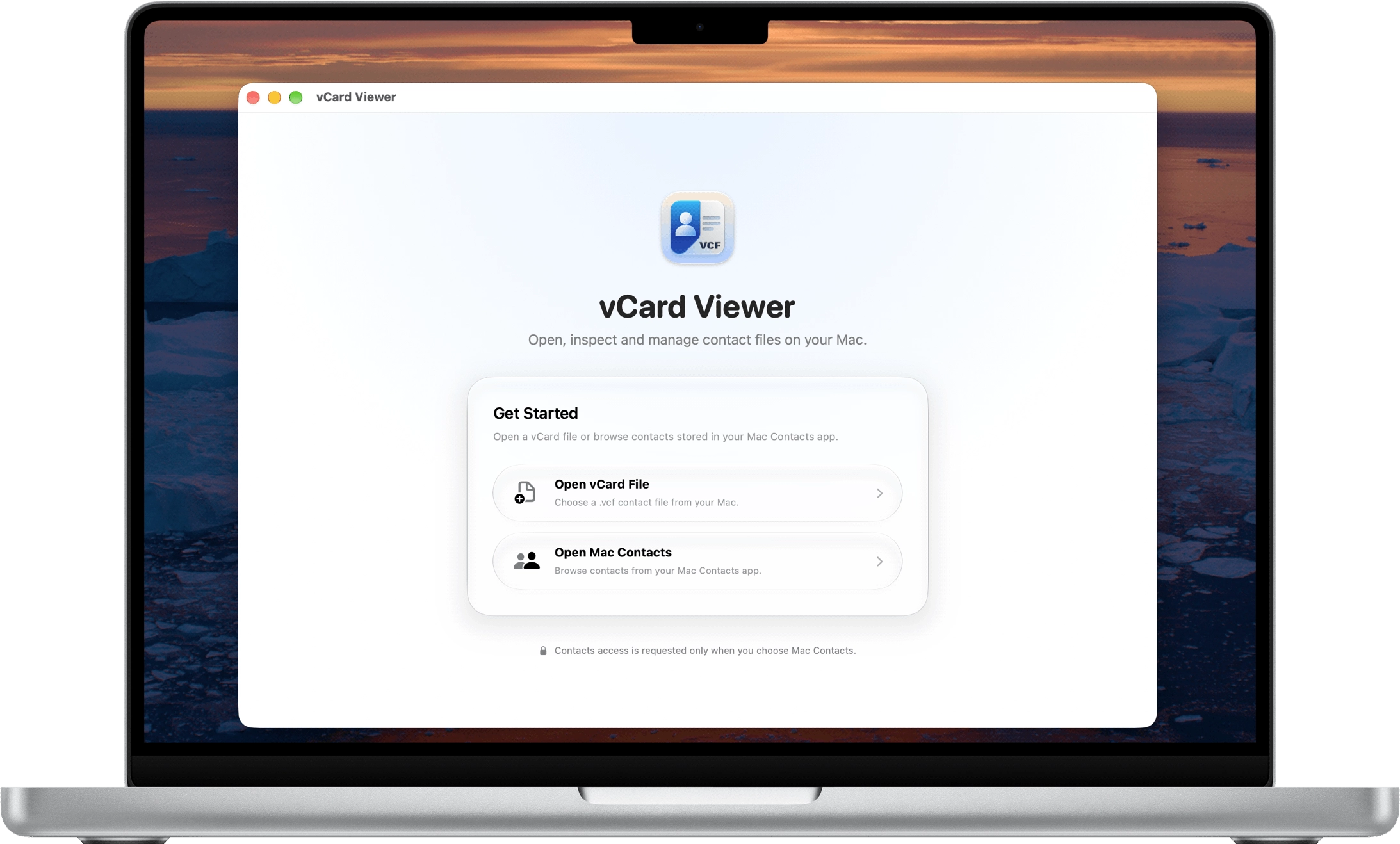
Inspect .vcf contact files directly from your Mac without first importing them into Contacts.
Open your existing Mac Contacts library and work with contacts in the same focused interface.
Search, sort and group contacts by company, job title, country or city.
Open and inspect vCard files without granting Contacts access. Permission is requested only when you choose Mac Contacts.
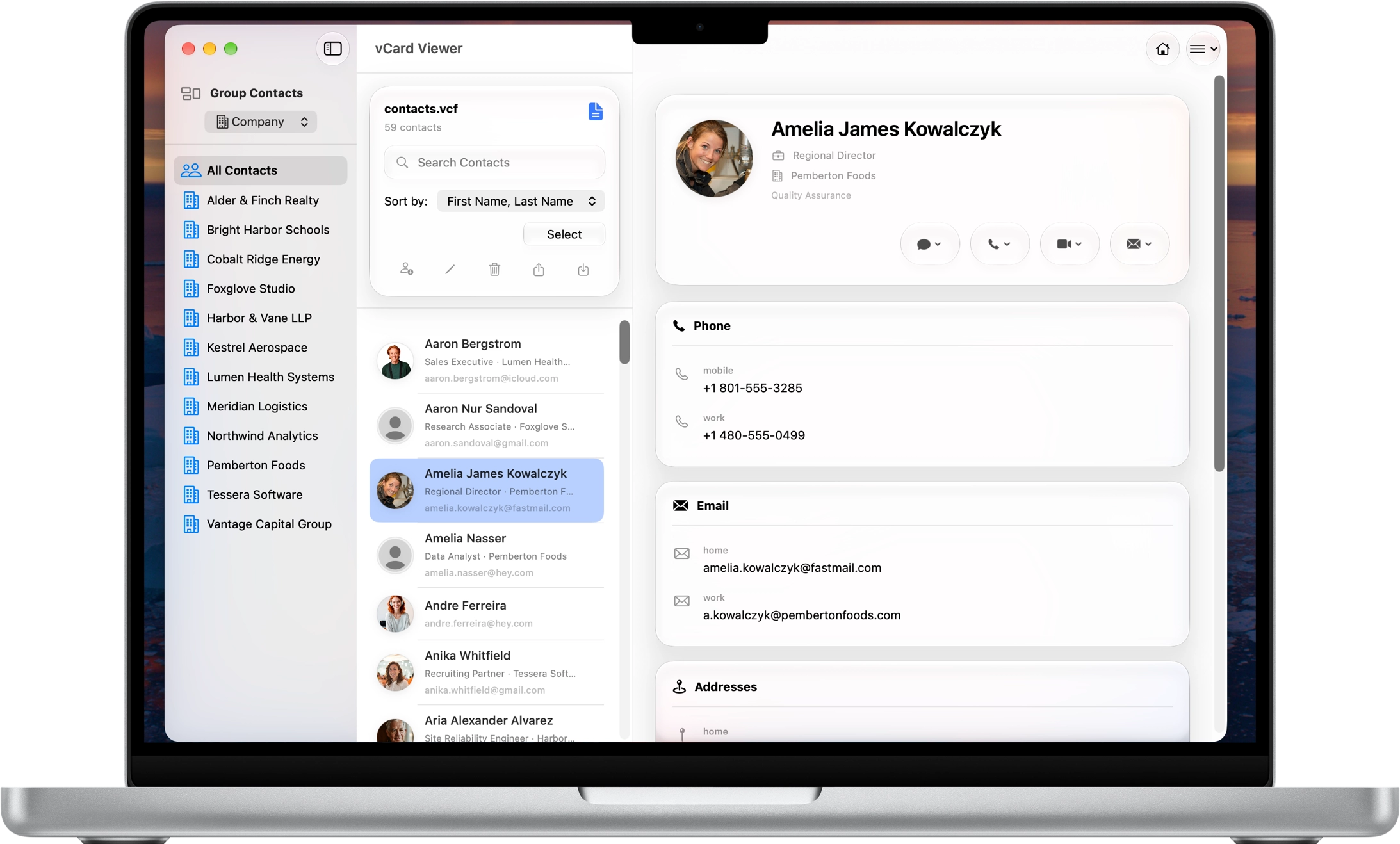
Whether you open a vCard file or your Mac Contacts, vCard Viewer brings organization, contact tools and detailed information together in one clear three-panel workspace.
Switch between Company, Job Title, Country and City to quickly navigate even large contact collections.
Search the loaded vCard or Mac Contacts collection instantly and combine search with flexible sorting.
Create, edit, delete, share and export contacts directly from the central toolbar.
Start a message, phone call, FaceTime video call or email using the information stored on the selected contact.
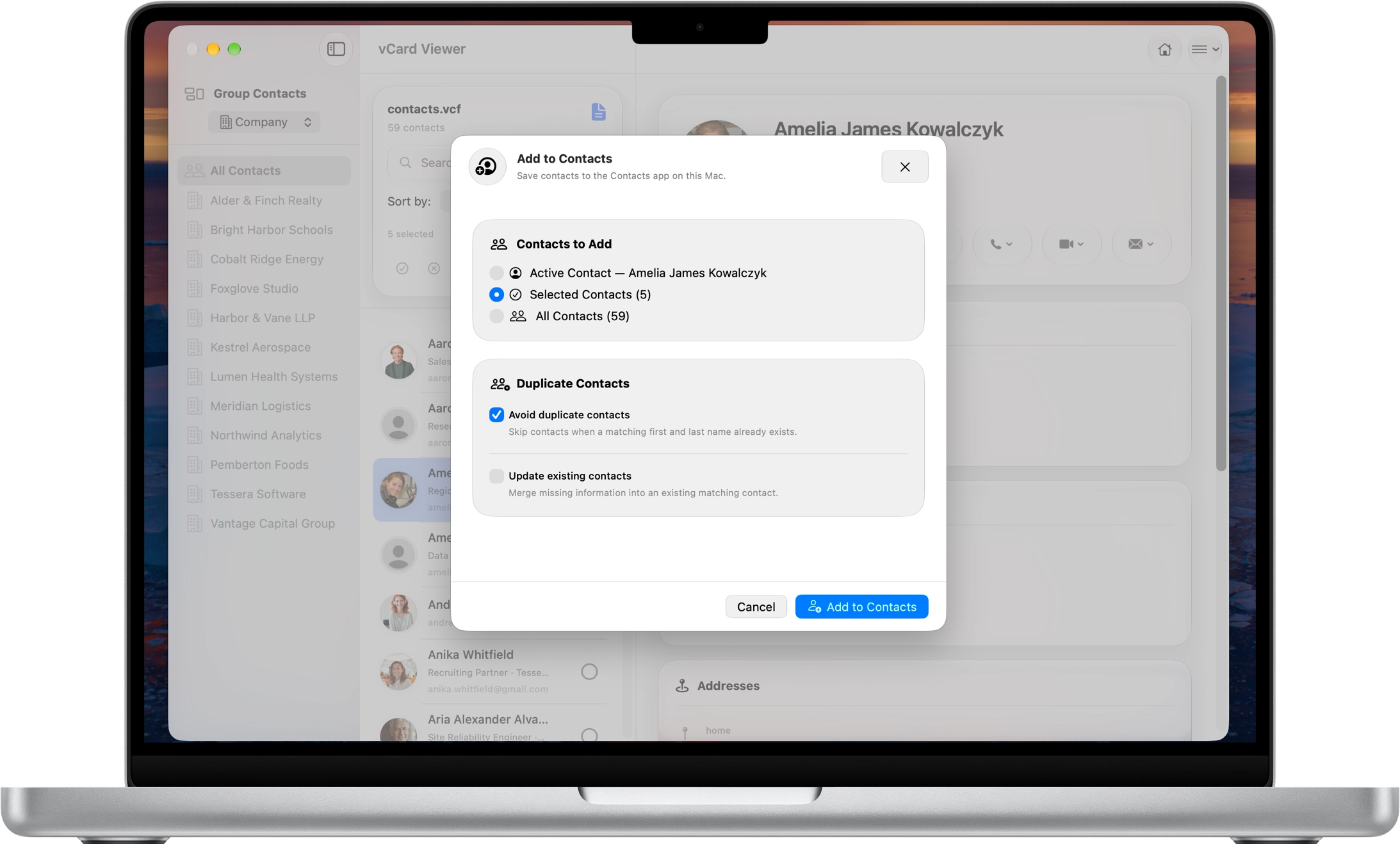
Open a VCF file, choose exactly which contacts you want to keep, and add them directly to the Contacts app on your Mac. Import a single contact, your current selection, or the entire vCard file.
Skip a contact when a matching first and last name already exists in Mac Contacts, helping prevent unnecessary duplicates.
When a matching contact is found, merge missing information into the existing contact instead of creating another one.
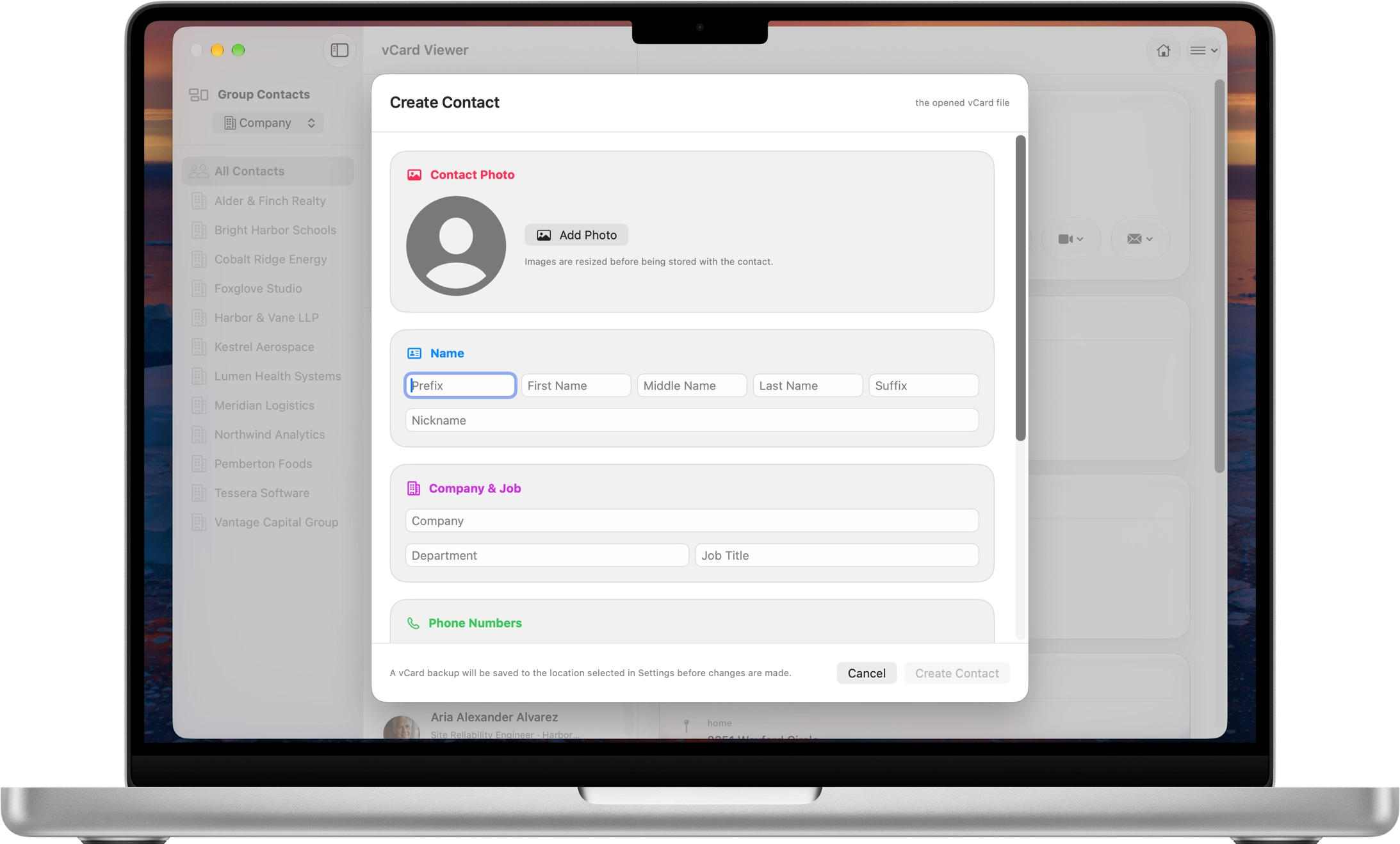
Create a new contact or open an existing one for editing with the same detailed workspace. Add the information you need, keep multiple values for important fields and build a complete contact card instead of being limited to one phone number or address.
Add or update a contact photo along with prefix, first name, middle name, last name, suffix and nickname.
Add as many phone numbers as a contact needs instead of choosing only one primary number.
Keep personal, work and other email addresses together on the same contact card.
Store more than one postal address for a contact when home, work or other locations are required.
Add several websites or online links without replacing information already stored.
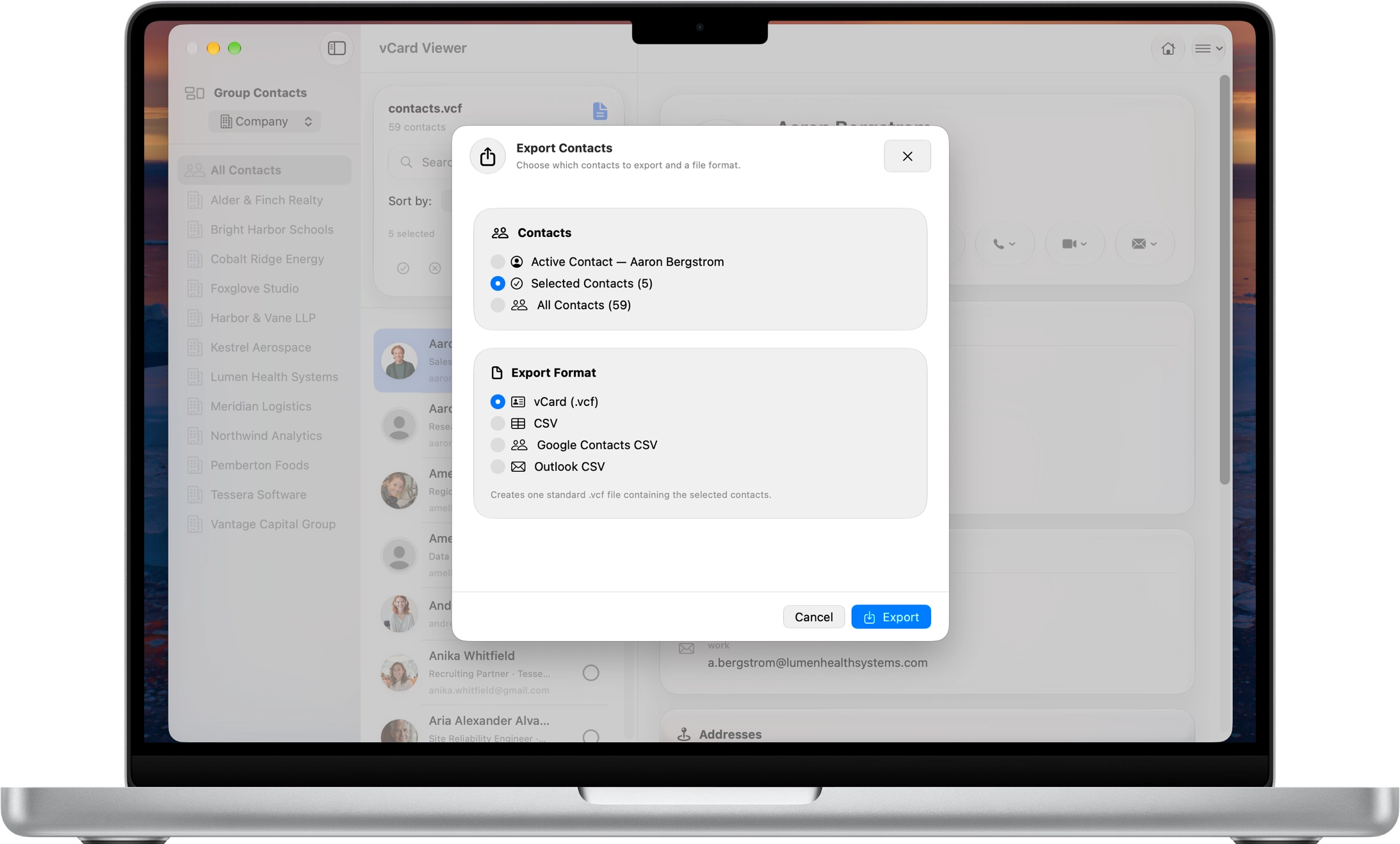
Export the contact you are viewing, a selected group, or the complete loaded contact list. vCard Viewer gives you several output formats so your contacts can move easily between apps, services and platforms.
Export contacts in the standard vCard format for compatible contact and address-book apps.
Create a general CSV file for spreadsheets, databases and other workflows.
Export using a CSV layout prepared for importing into Google Contacts.
Create a CSV format suited for transferring contact information into Outlook.
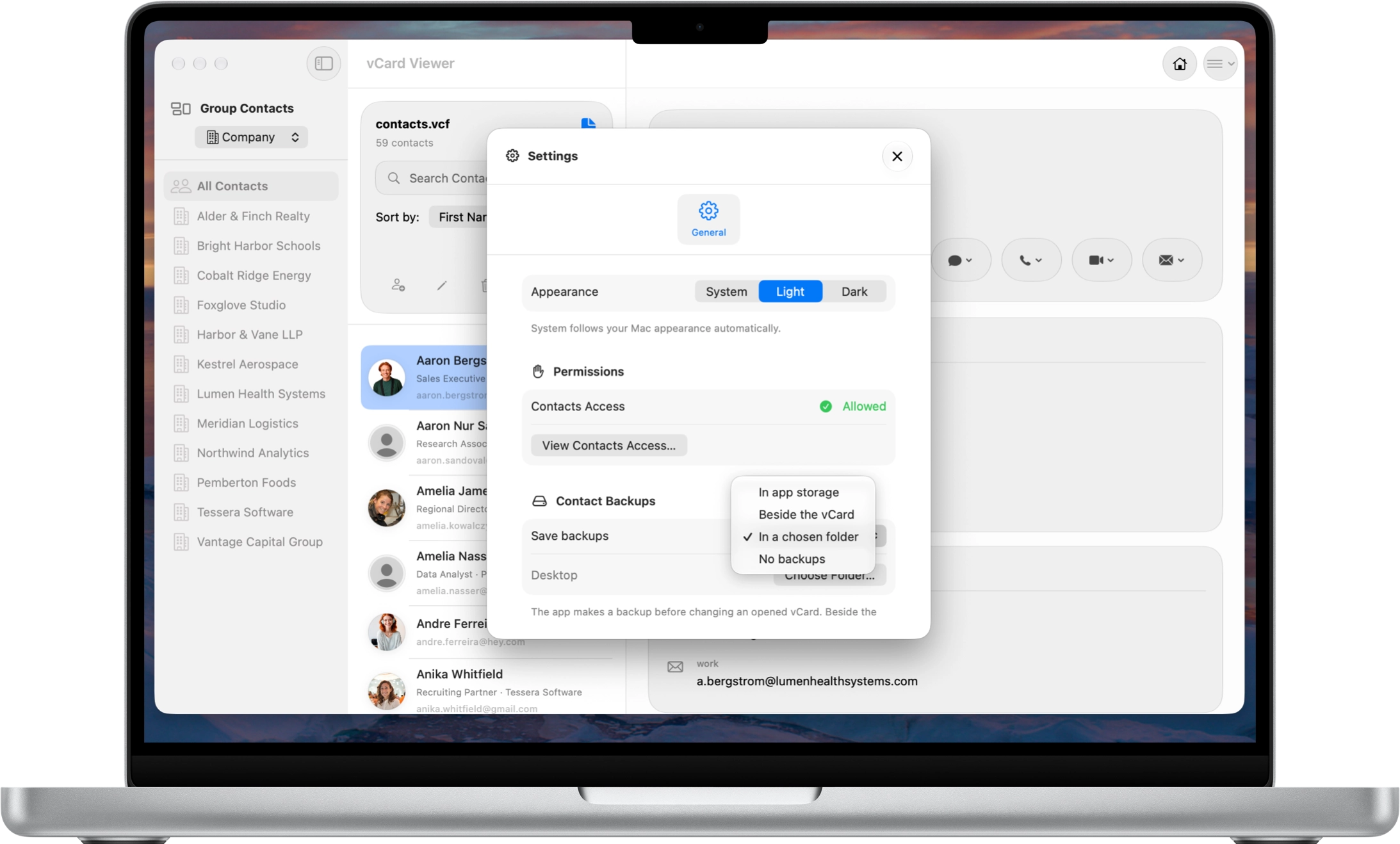
vCard Viewer can create a dated backup before you edit or delete contacts, helping preserve the previous state of your opened vCard before changes are written. Choose where those backups should be stored directly from Settings.
Keep a copy of the contact data before supported edit or delete operations modify the opened vCard.
Keep backups managed inside vCard Viewer's own application storage.
Save the backup next to the opened VCF file so the original contact file and its backup stay together.
Select your own backup destination and keep contact backups wherever they fit your workflow.
Choose No Backups when you do not want an automatic backup created before changes.
Backup behavior and destination are configured from vCard Viewer Settings, so you can choose the workflow that fits each Mac.
Open vCard files, browse Mac Contacts, organize people by company or location, edit details, export to VCF or CSV and keep backups, all locally on your Mac.