Move your files. Publish your videos.
CloudBench copies files and whole folders between your Mac and Google Drive, Dropbox or OneDrive, in either direction, and uploads videos straight to your YouTube channel. Queue the work, watch it run, and pick it up again if a transfer is interrupted.
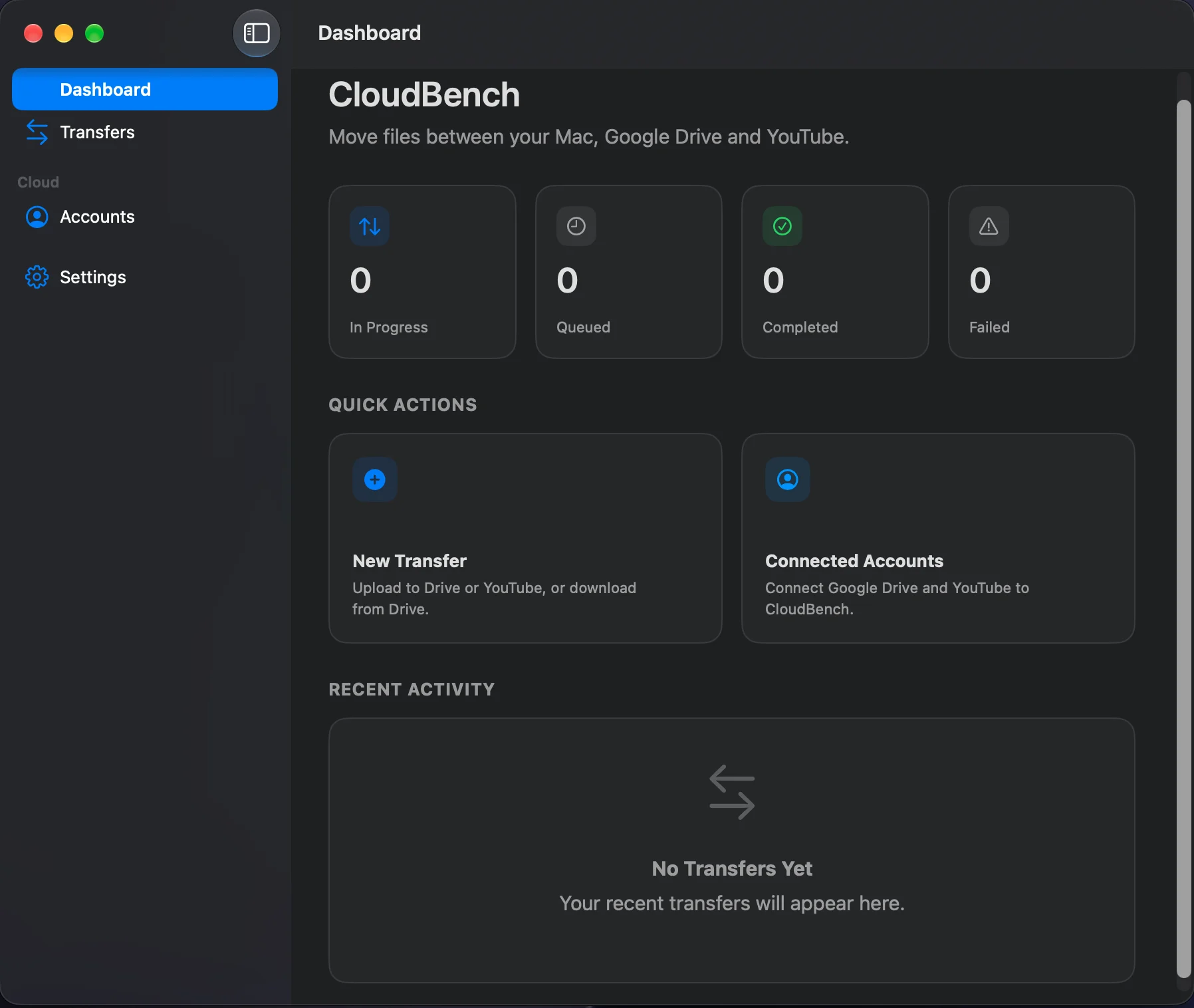
Pick a source, a destination, and the files.
Every transfer starts the same way. Choose where the files come from and where they go, then select them from your Mac or browse the cloud account you connected. CloudBench queues one job per file so a single failure never takes the batch with it.
- Mac to Google Drive, Dropbox or OneDrive — including nested folders, with the folder structure recreated at the far end.
- Google Drive, Dropbox or OneDrive to your Mac — browse the account inside the app and pick what you want.
- Mac to YouTube — upload a video with all of its details in the same step.
- Resumable chunked uploads — a dropped connection does not mean starting a large file again.
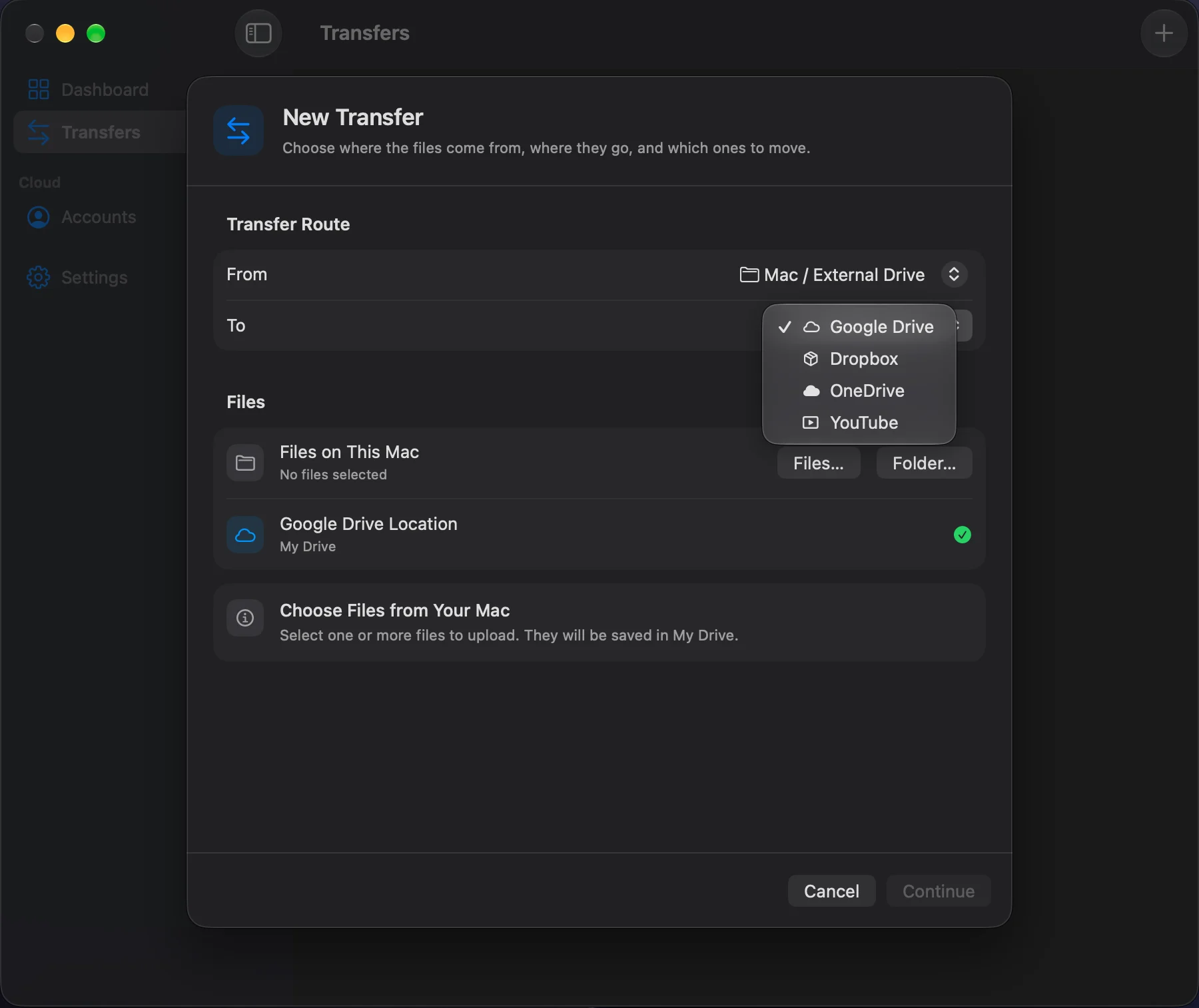
Your accounts, connected once.
Sign in to each service on its own page. CloudBench never sees your password: the provider hands back an authorisation token, which is kept in your macOS Keychain. Connect more than one account per service and choose between them on any transfer.
- Storage at a glance — see how much space each connected account has used.
- Multiple accounts — personal and work side by side, told apart by name.
- Disconnect anytime — removing an account deletes its token from your Keychain.
- Clear status — when a connection expires the app says so, rather than failing silently.
Fill in the video details before it leaves your Mac.
Uploading to YouTube from CloudBench is one step, not two. Enter everything the video needs while you queue it, and the upload arrives on your channel ready rather than waiting to be edited afterwards.
- Title, description and tags — with live character counts, so nothing is cut off by a limit you did not know about.
- Public, unlisted or private — plus the made for kids designation YouTube requires.
- Playlists — add the video to one of yours, or create a new playlist as part of the upload.
- Custom thumbnail — pick a cover image and it is set once the upload finishes.
Your files never pass through us.
CloudBench talks directly to Google, Dropbox and Microsoft from your Mac. ARTHOUSE Studio runs no server for it, so there is nothing in the middle to trust, and nothing of yours for us to hold.
No middle server
Files move straight from your Mac to the service you chose. There is no CloudBench account to create.
Tokens in the Keychain
Authorisation tokens are stored by macOS, encrypted with your account. Passwords are never seen by the app.
No analytics
No tracking, no telemetry, no crash reporting, no advertising identifiers.